

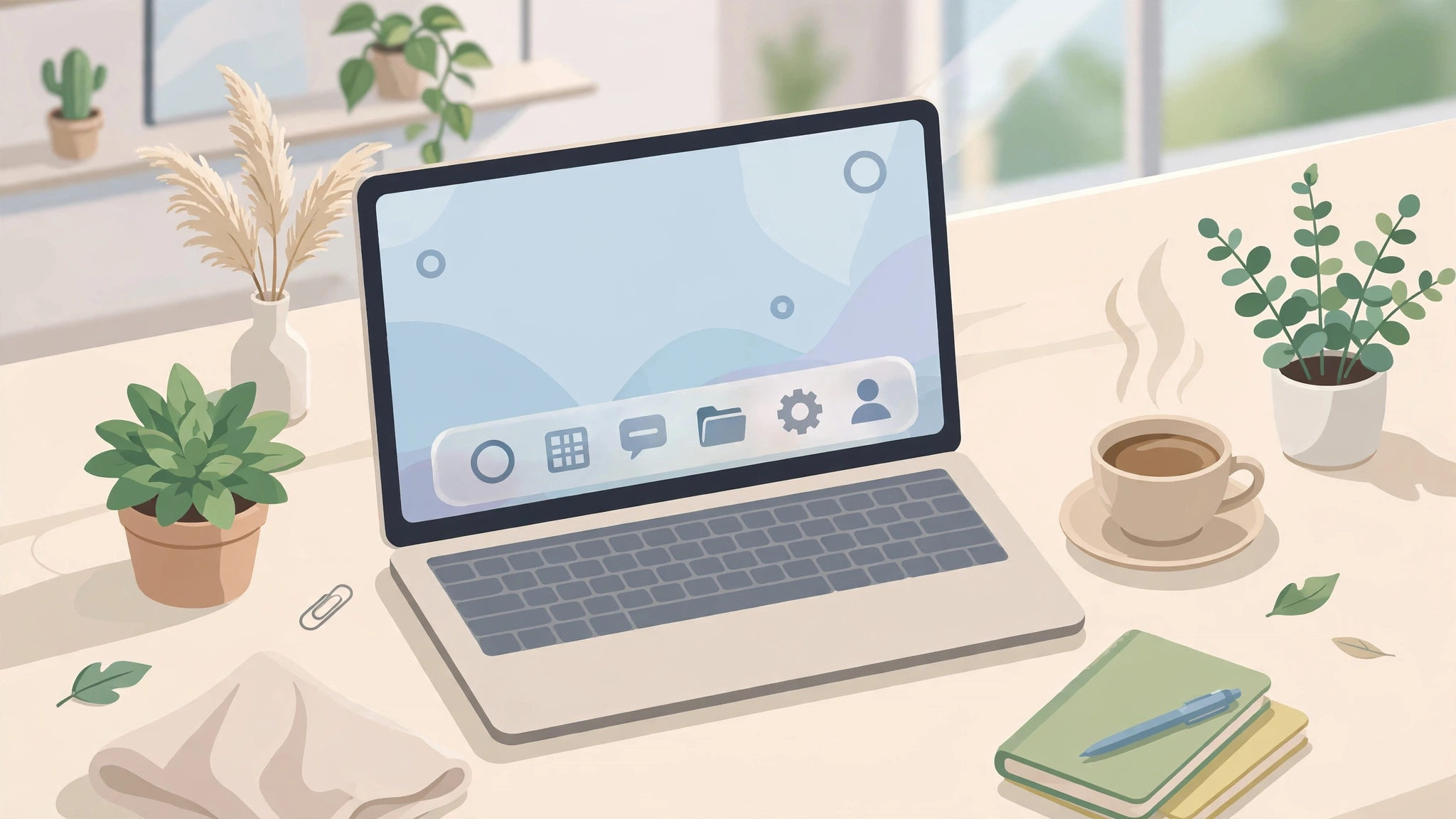
Windows 11 already looks cleaner than its predecessor, but the default taskbar still leaves plenty of room for improvement. Icons can feel crowded, the bar itself is fully opaque, and there are very few built-in options for animation or spacing. With a few thoughtful tweaks, however, you can turn that plain strip at the bottom of your screen into something that looks intentional, works faster, and matches the rest of your desktop.
Start by Decluttering Your Pinned Apps
Every good customization starts with subtraction. Right-click any pinned app you have not opened in the last two weeks and unpin it. Most people discover they only truly need a browser, File Explorer, one communication app, and two or three job-specific tools on the bar at all times. Everything else can live in the Start menu, where search finds it in seconds. A shorter row of icons is easier to scan, leaves space for open windows, and instantly makes the whole desktop feel calmer and more organized.
While you are tidying, turn off the taskbar items you never use. Widgets, chat shortcuts, and extra search boxes all compete for attention. In Settings, under Personalization and then Taskbar, you can hide the elements that do not earn their place. On a smaller laptop screen this single step can free up a surprising amount of room. Think of the taskbar as prime real estate: if an icon does not help you work or relax, it should not be taking up permanent space there.
Center, Align and Space Things Properly
Windows 11 centers icons by default, but you can fine-tune that alignment far beyond the on-or-off choice in Settings. If you prefer a centered group that stays perfectly balanced even as you open more apps, a dedicated customization tool gives you pixel-level control over position and offset. That precision matters on ultrawide monitors, where the default centering can look slightly off, and on multi-monitor setups where each screen may need a slightly different treatment to look consistent.
Spacing deserves attention too. Give your icons room to breathe instead of packing every launcher you own into one row. Group your thinking in threes: communication on one side of your mental map, creation tools in the middle, and utilities at the end. You cannot drag icons into labeled groups on the taskbar itself, but a consistent personal order works just as well. After a few days your hand will move to the right spot automatically, which is the real goal of any layout change.
Add Transparency, Blur or an Acrylic Finish
The solid-color taskbar is the biggest visual giveaway of a stock Windows install. Making the bar transparent, adding a soft blur, or using an acrylic effect lets your wallpaper blend into the bottom of the screen and makes the desktop feel like one continuous surface. If you want that level of control, Taskbarx is a free, open-source utility worth trying, because it lets you adjust the taskbar style and opacity separately from the rest of the Windows theme, so you can test subtle changes without committing to a full makeover.
Choose the effect based on your wallpaper. Busy, colorful wallpapers usually look best behind a blur or acrylic finish, which keeps icons readable. Minimal, dark wallpapers can handle full transparency beautifully. Whichever style you pick, check readability in bright daylight as well as at night, and test it with both light and dark apps open. A taskbar that looks stunning in a screenshot but strains your eyes at 2 p.m. is not an improvement, so favor contrast over novelty every time.
Use Animation Sparingly for a Polished Feel
A short, smooth animation when windows open or icons appear can make Windows feel more responsive and modern. The key word is short. Animations should be a subtle glide, not a bounce or a spin that delays you every time you switch tasks. If your machine is older or you work with many windows at once, consider turning animations down or off entirely and keeping only the layout and transparency changes. Performance should always win over decoration on a computer you rely on for work.
It also helps to be consistent. If your taskbar animates softly, keep your other Windows animation settings in the same spirit instead of mixing snappy menus with slow taskbar effects. Consistency is what makes a customized desktop feel designed rather than patched together. Spend a day working normally after each change, rather than judging everything in the first five minutes. The setups that last are the ones that still feel comfortable after a full week of real use, deadlines included.
Keep It Fast, Stable and Easy to Undo
The best customization is reversible. Use lightweight tools, avoid registry hacks you do not understand, and note what you changed so you can undo it after a Windows update. Set any utility you rely on to start with Windows, then reboot once to confirm everything survives a fresh start. Finally, take a screenshot of your finished desktop. It sounds trivial, but that reference image makes it much easier to restore your favorite layout later, whether you reinstall Windows, buy a new laptop, or simply want to recreate the same clean look on a second machine.
